
A Web3 Chrome extension is a normal browser extension — built with HTML, CSS, and JavaScript — that talks to a blockchain instead of (or alongside) a regular web server. It lives in the toolbar, opens in a small popup, and can read on-chain data or send transactions through a wallet.
This guide walks through building one from scratch: a small extension that looks up the ETH balance of any address. From there, you’ll add wallet support, keep your node credentials safe, and ship it to the Chrome Web Store. The examples use Manifest V3, which is now the only version Chrome accepts.
What Is a Web3 Browser Extension?
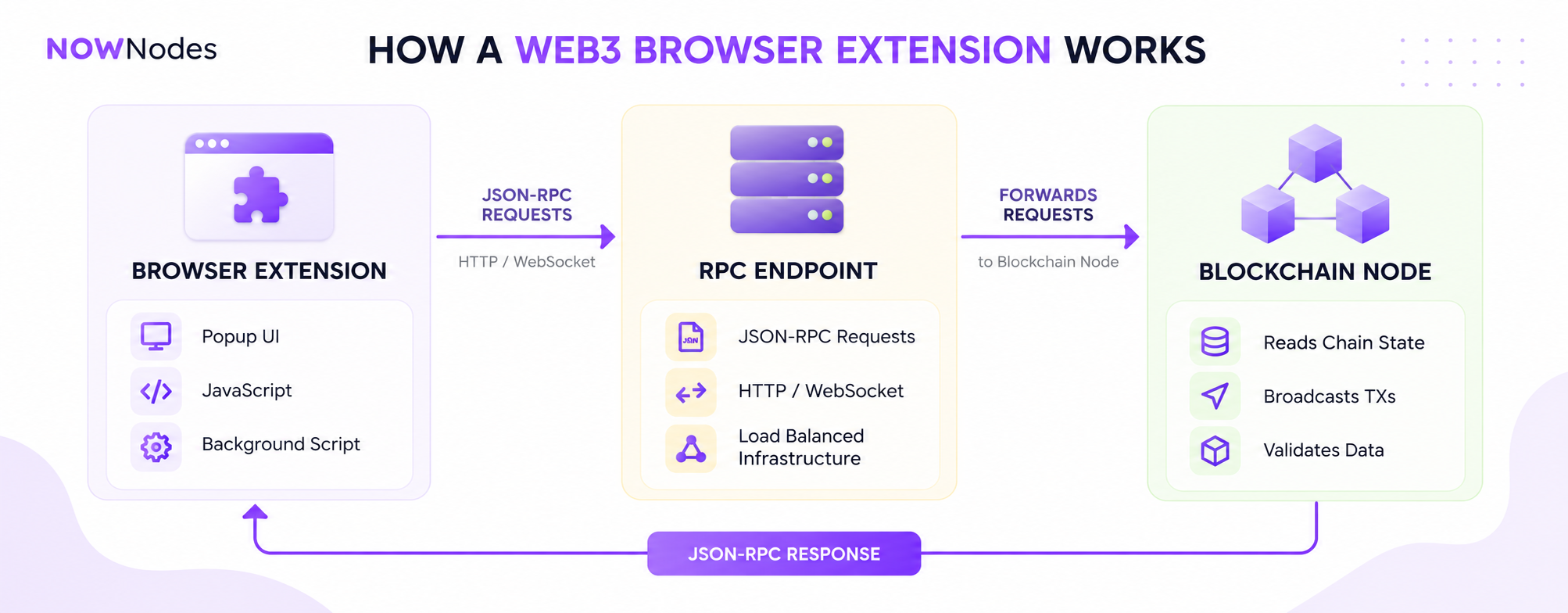
It’s a browser add-on that connects to a blockchain network. The front end is identical to any Chrome extension — standard web files packaged into a small app. What makes it “Web3” is where it gets its data: a blockchain node, usually reached over an RPC (Remote Procedure Call) endpoint, which is a server that reads chain state and broadcasts signed transactions.
You already use several of these. MetaMask is a non-custodial wallet extension. Gas trackers show live fee estimates. Portfolio extensions read balances across chains. All of them follow the same pattern: a popup UI plus a connection to the network.
The extension itself doesn’t run a blockchain node. It sends JSON-RPC requests — for example eth_getBalance to read a balance — and renders whatever comes back.
Why Build One Instead of a Web App?
A browser extension solves a few problems a plain website can’t. It’s always one click away in the toolbar, with no tab to open and no URL to type. It can read and modify the pages a user visits, which is how wallets inject a connection into dApps. And it keeps a persistent presence, so a price tracker or transaction monitor can sit in the corner of the screen.
That reach is also why wallets are extensions rather than sites. A dApp in a browser tab needs to talk to a wallet that holds the user’s keys. The wallet extension exposes an interface the page can call, and the user approves each action in a popup they trust.
Typical builders include wallet teams, analytics and portfolio tools, gas and fee estimators, NFT viewers, and internal dashboards that need a quick on-chain lookup without a full web front end.
What You Need Before You Start
You don’t need much to build a basic Web3 Chrome extension.
| What you need | Why it matters |
|---|---|
| Google Chrome (or a Chromium browser like Brave or Edge) | To load and test the unpacked extension |
| A code editor such as VS Code | To write the manifest and scripts |
| An RPC endpoint for Ethereum | So the extension can read chain data without you running a node |
| Basic HTML, CSS, and JavaScript | The extension’s entire front end is web code |
The one piece that often trips people up is the node connection. Running your own Ethereum node means syncing and maintaining hundreds of gigabytes of state, which is overkill for a toolbar app. Instead, you point the extension at a hosted RPC endpoint. Our shared nodes expose standard JSON-RPC methods such as eth_getBalance, so the request in this tutorial works the same whether you’re on a free public endpoint or a keyed plan.
For a quick local demo you can start with a free public endpoint — no registration, no API key — and move to a plan with a higher request quota once the extension does real work.
How to Build One Step by Step
We’ll build an extension with three files: a manifest, a popup page, and a script. No bundler required. Larger projects often add webpack or a build tool, but a simple extension doesn’t need one.
Set Up the Project Files
Create a folder and add three empty files:
sh
mkdir eth-balance-extension
cd eth-balance-extension
touch manifest.json popup.html popup.js
That’s the whole project. Chrome loads the folder directly.
Write the Manifest File
Every extension needs a manifest.json. It tells Chrome the extension’s name, version, what the toolbar button does, and which hosts the extension may contact.
json
{
  "manifest_version": 3,
  "name": "ETH Balance Viewer",
  "version": "1.0",
  "description": "Check any Ethereum address balance from your browser.",
  "action": {
    "default_popup": "popup.html"
  },
  "host_permissions": [
    "https://your-rpc-host.example/*"
  ]
}
A few things matter here. manifest_version must be 3 — more on that below. The action block points the toolbar button at the popup. host_permissions lists the RPC host the extension is allowed to call, so the cross-origin request isn’t blocked. Replace the placeholder host with the endpoint you’re using.
Build the Popup Interface
The popup is a plain HTML page. One input for an address, one button, and a spot to show the result.
html
<!DOCTYPE html>
<html lang="en">
  <head>
    <meta charset="UTF-8" />
    <style>
      body { font-family: system-ui, sans-serif; width: 280px; padding: 16px; }
      input, button { width: 100%; padding: 8px; margin-top: 8px; box-sizing: border-box; }
      #result { margin-top: 12px; font-weight: 600; }
    </style>
  </head>
  <body>
    <input id="address" type="text" placeholder="Ethereum address (0x...)" />
    <button id="check">Check balance</button>
    <div id="result"></div>
    <script src="popup.js"></script>
  </body>
</html>
Notice the script is loaded from a separate file rather than written inline. Manifest V3 blocks inline JavaScript for security, so all your logic has to live in .js files.
Connect to Ethereum Through an RPC Endpoint
Now the logic. When the button is clicked, the script sends an eth_getBalance request and converts the result from Wei (the smallest ETH unit) to ether.
javascript
const RPC_URL = "YOUR_ETH_RPC_ENDPOINT"; // from your node dashboard

document.getElementById("check").addEventListener("click", async () => {
  const address = document.getElementById("address").value.trim();
  const out = document.getElementById("result");
  if (!address) { out.textContent = "Enter an address first."; return; }

  try {
    const res = await fetch(RPC_URL, {
      method: "POST",
      headers: { "Content-Type": "application/json" },
      body: JSON.stringify({
        jsonrpc: "2.0",
        id: 1,
        method: "eth_getBalance",
        params: [address, "latest"]
      })
    });
    const data = await res.json();
    const eth = parseInt(data.result, 16) / 1e18;
    out.textContent = `Balance: ${eth.toFixed(4)} ETH`;
  } catch (e) {
    out.textContent = "Request failed. Check the endpoint and address.";
  }
});
eth_getBalance returns a hex string, which is why the code parses it as base-16 and divides by 1e18. Swap YOUR_ETH_RPC_ENDPOINT for the endpoint URL from your node dashboard. Keep the host_permissions entry in the manifest in sync with this host.
Load and Test It in Chrome
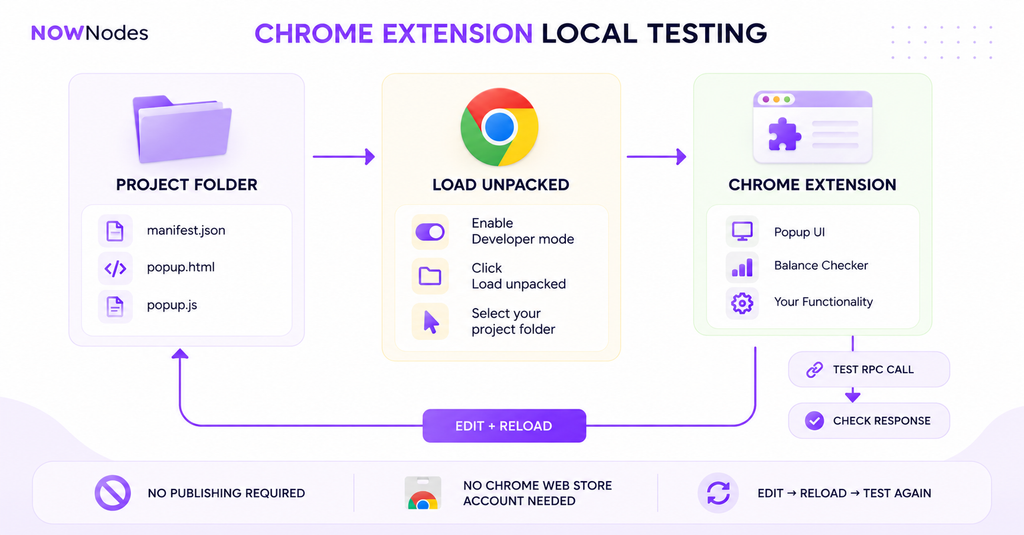
Local testing is free — you don’t publish anything to try the extension.
- Open
chrome://extensionsin a new tab. - Turn on Developer mode (top-right toggle).
- Click Load unpacked and select your project folder.
The extension appears in the list and in the toolbar. Click it, paste an address, and check the balance. A good test address is Ethereum co-founder Vitalik Buterin’s public wallet, 0xd8dA6BF26964aF9D7eEd9e03E53415D37aA96045. Edit a file, click the refresh icon on the extension card, and your changes reload.
How to Connect a Wallet Like MetaMask
Reading a balance only needs an RPC endpoint. Sending a transaction needs a wallet, because the wallet holds the user’s keys and signs on their behalf. Your extension never touches the private key — it asks the wallet to sign.
Injected Providers and window.ethereum
Wallet extensions inject a provider object into web pages following EIP-1193, the standard Ethereum provider interface. Historically, dApps reached it through the global window.ethereum. You request access, then read the connected account:
javascript
await window.ethereum.request({ method: "eth_requestAccounts" });The catch is that window.ethereum was never designed for more than one wallet. When a user has several wallet extensions installed, they all compete to inject into the same object, and the last one to load usually wins — so the dApp can’t reliably reach the wallet the user actually wants.
Discovering Wallets With EIP-6963
The fix is EIP-6963, the Multi Injected Provider Discovery standard. Instead of fighting over one global, each wallet announces itself through a browser event, and your code collects every wallet the user has. MetaMask’s own documentation recommends this mechanism for discovery, and it’s supported by MetaMask, Coinbase Wallet, Trust Wallet, OKX, and other major wallets.
javascript
const wallets = [];
window.addEventListener("eip6963:announceProvider", (event) => {
  wallets.push(event.detail); // { info, provider }
});
window.dispatchEvent(new Event("eip6963:requestProvider"));
Each event.detail carries info (the wallet’s name, icon, and a reverse-domain ID like io.metamask) and a provider you can call. You present the list, let the user pick, and connect to their choice. For dApps that haven’t added EIP-6963 yet, window.ethereum still works as a fallback.
Once you have a provider, a library makes signing easier. With ethers.js v6 — the current major release — you wrap the provider and get a signer:
javascript
const provider = new ethers.BrowserProvider(window.ethereum);
const signer = await provider.getSigner();
const address = await signer.getAddress();
If you used ethers v5 before, note that v6 renamed Web3Provider to BrowserProvider and made getSigner() asynchronous. web3.js and viem are equally valid choices; ethers is just one common option.
Keeping Your RPC Key Off the Client
Anyone can unzip a published Chrome extension and read its code. If you hard-code a secret API key in popup.js, you’ve handed it to the world. That key can then be used — and abused — against your node account.
Two patterns keep you safe. For public, read-only data, a free public endpoint with no key is fine to ship. For anything that needs a private key, put a small backend in front of your node: the extension calls your server, and your server adds the key and forwards the request to the RPC provider. The credential stays on the server and never reaches the browser.
A few more security basics apply to any crypto extension:
- Request only the permissions you actually use. Narrow
host_permissionsreduce the attack surface. - Never ask a user for their seed phrase or private key. No legitimate extension needs it.
- Manifest V3 bans remotely hosted code, so all your JavaScript ships inside the package and is reviewed. Don’t try to load executable code from a URL at runtime — it won’t pass review.
How to Publish It to the Chrome Web Store
When the extension is ready for other people, you publish it through the Chrome Web Store.
- Register a developer account and pay the one-time $5 registration fee. Chrome now requires this before you can use the developer dashboard.
- Zip the contents of your project folder — the files themselves, not the enclosing folder.
- Upload the ZIP in the dashboard, then fill in the listing: name, description, icons, screenshots, and a privacy disclosure.
- Submit for review. Extensions that handle crypto or wallets often draw extra scrutiny, so expect a careful look and keep your permissions justified.
- After approval it goes live. Each future update also passes through review.
Limitations and Risks to Plan For
A Web3 Chrome extension is powerful, but a few constraints shape how you build it.
The Manifest V2 era is over. Google disabled Manifest V2 extensions across Chrome with version 138 in July 2025, and on August 31, 2026 it removed the last of them from the Chrome Web Store. New extensions must be Manifest V3, full stop.
Under Manifest V3, the background script is a service worker that sleeps when idle instead of running continuously. Don’t rely on long-lived background state; save anything important to storage and reload it when the worker wakes.
The biggest risks are on the trust side. Secret keys in client code leak the moment the extension is published. Crypto extensions are prime phishing targets, so impersonation and fake listings are a real concern for your users. Treat security and permission scope as first-class features, not afterthoughts.
Conclusion
Building a Web3 Chrome extension comes down to three layers: a standard extension shell, a reliable connection to the chain, and — when you need transactions — a wallet the user controls. The balance-viewer example covers the first two; EIP-6963 and a signing library add the third.
The piece that quietly carries the rest is the node connection. A toolbar app shouldn’t be running its own Ethereum node, and it shouldn’t be leaking keys to do RPC calls either. That’s where our infrastructure fits: NOWNodes gives you RPC access across 120+ networks, so you can start on a free public endpoint, move to a keyed plan behind a proxy for production, and point the same extension at Bitcoin, Polygon, BNB Smart Chain, or any other supported chain without rebuilding it. If you want a deeper look at wiring a chain into an app, see our guide on integrating Ethereum into a Web3 project.
FAQ
What Programming Languages Do I Need?
HTML, CSS, and JavaScript cover everything in a Chrome extension. TypeScript is optional and popular for larger projects, but it’s not required to ship.
Can the Extension Support Blockchains Other Than Ethereum?
Yes. Any network with an RPC endpoint works the same way — you change the endpoint URL and the methods you call. A single extension can talk to several chains if you give it an endpoint for each.
Do I Have to Use ethers.js, or Can I Use web3.js or viem?
Any of them works, and you can also use plain fetch for simple read calls, as the balance example does. ethers.js v6, web3.js, and viem all handle wallet connections and signing; pick the one your team prefers.
Will a Chrome Extension Run in Brave, Edge, or Firefox?
Chromium-based browsers like Brave and Edge load the same Manifest V3 package with little or no change. Firefox uses a different extension model, so a port usually needs some adaptation before it runs there.