
With most cryptocurrencies, checking a balance is trivial: paste an address into a block explorer and the number appears. Monero doesn’t work that way. Because the protocol doesn’t expose public address balances, you can’t read an XMR balance from an address alone — you need the wallet that holds the keys, or a view key that someone has shared with you.
That single difference trips up a lot of newcomers, and it’s why “why doesn’t my Monero balance show up?” is such a common question. This guide covers every way to check your Monero wallet balance — from the one-click method inside your wallet to the developer approach through a node — plus the one caveat behind almost every “wrong balance” complaint.
Why Checking a Monero Balance Works Differently
Monero is private by default. On transparent chains like Bitcoin or Ethereum, every address and its balance sit in the open — exactly what block explorers read. Monero uses stealth addresses, hidden amounts (RingCT), and ring signatures to break those links, so an outside observer sees nothing about what your address holds or moves.
The Monero Project describes the design as “private, optionally transparent.” As its Moneropedia puts it, Monero “features an opaque blockchain (with an explicit allowance system called the view key), in sharp contrast with transparent blockchains.” Here’s the practical upshot: privacy is the default, and visibility is something you switch on deliberately with the right key.
Today, sender privacy comes from ring signatures with a ring size of 16 — one real input among 15 decoys — fixed in the August 2022 upgrade. A planned change called FCMP++ (Full-Chain Membership Proofs) would replace rings entirely, proving a spent output belongs to all eligible outputs on the chain rather than a small ring. As of mid-2026 it’s still in development and auditing with no confirmed mainnet date, so ring signatures remain in use — the current client release is 0.18.5.0 ‘Fluorine Fermi’.
People transact with Monero, which is why balance-checking matters. “It shouldn’t be surprising that Monero is often used for payments rather than being held like Bitcoin as an investment,” said Justin Ehrenhofer, vice president of operations at Cake Wallet, in an April 13, 2023 CoinDesk interview, “Privacy-Preserving Payments Shouldn’t Be ‘Niche’, Monero Contributor Justin Ehrenhofer Says.” When money moves, you need a reliable way to confirm what’s arrived and what’s left.
The Dual-Key System That Controls What You Can See
Every Monero account is built on two private keys, and understanding the split is the foundation for everything below. Get this one distinction right and the rest of the methods fall into place.
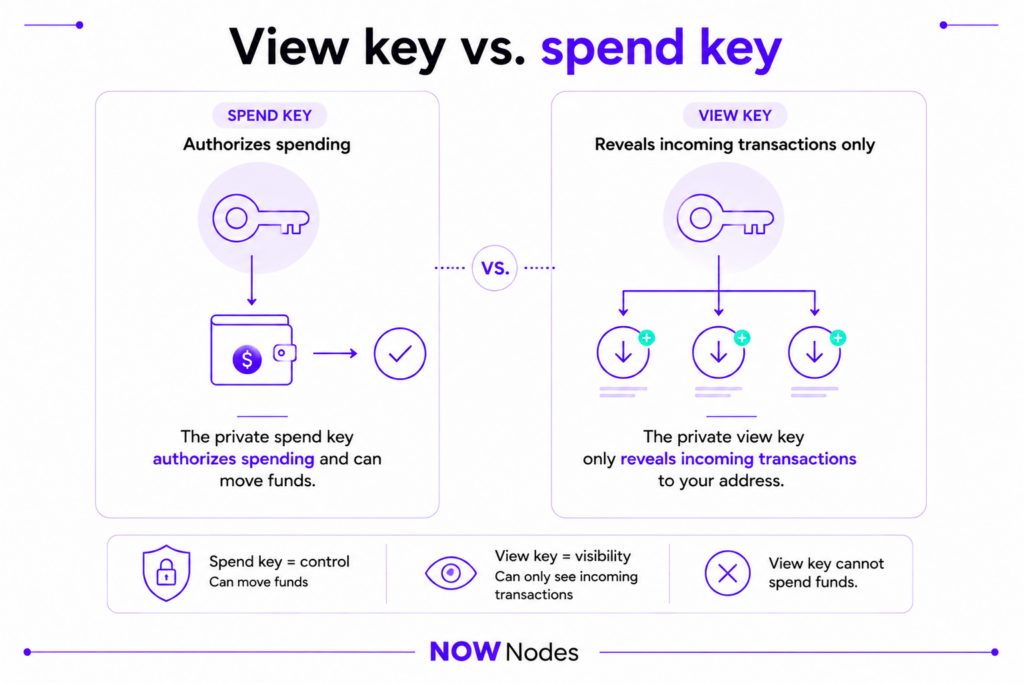
View key vs. spend key: The private spend key authorizes spending — it gives full control of your funds and should never be shared. The private view key only reveals incoming transactions to your address. Sharing it can’t move a single coin, but it does expose your incoming activity, so treat it as privacy-sensitive.
The public halves of these keys are encoded into the address you hand out — a primary address starting with 4, or a recommended subaddress starting with 8. This is what makes an XMR wallet check different from other coins: seeing a balance is a permission you grant, not a default anyone can access.
There’s a subtlety here that matters more than any other point in this guide. A view key shows money coming in, but on today’s protocol it cannot reliably see money going out — Monero currently offers only incoming view keys. Its own documentation is blunt about it: “the balance of a Monero address as shown via a viewkey should not be relied upon.” We’ll return to why that happens — and how to fix it — in the view-key section.
Method 1: Check the Balance Inside Your Wallet (Easiest)
The simplest way to check your Monero balance is to open the wallet that holds your keys and let it scan the blockchain for you. The wallet uses your private view key to find incoming outputs and your spend key material to account for what you’ve sent, then displays the total — no commands or explorers required.
You’ll usually see two numbers: balance and unlocked balance. A standard received output becomes spendable after 10 confirmations — roughly 20 minutes at the two-minute block time — so freshly received funds read as locked until then. (Mining, or coinbase, outputs differ: they mature after 60 confirmations.) A payment showing as locked isn’t missing; it’s maturing.
Desktop: GUI and CLI Wallets
The official Monero GUI wallet shows your balance on the main screen the moment it finishes syncing. If the figure looks stale, trigger a manual refresh and confirm the wallet is connected to a working node.
If you prefer the command line, the official CLI wallet is just as quick. Type balance to print your total and unlocked amounts, refresh to pull the latest blocks, and — with the caution noted later — rescan_bc to rescan the chain when something looks off. Those first two commands resolve most everyday “my balance is wrong” moments on desktop.
Mobile and Lightweight Wallets
On mobile, open-source options like Cake Wallet and Monero.com show your balance on the home screen as soon as the app syncs. Feather is a popular lightweight desktop choice that does the same without storing the full blockchain.
One clarification about these wallets: they scan on your own device using your keys and only pull blockchain data from a remote node — they do not hand your private view key to that node. That differs from remote-synchronization light wallets (MyMonero-style servers), which do send your view information to a scanning server.
Method 2: View Your Balance With a View Key (Read-Only)
Sometimes you want to view a Monero wallet balance without the ability to spend from it. An accountant auditing a business wallet, a treasurer watching a donation address, or anyone proving funds to a third party all need visibility, not control. This is exactly what the view key was built for.
You create a view-only wallet by restoring from your primary address plus your private view key, leaving the spend key blank. In the CLI, that’s monero-wallet-cli --generate-from-view-key; the GUI offers the same through its restore flow. The official view-only wallet guide walks through both. The result is a wallet that can watch every incoming payment but can’t move a coin.
The Catch: Why a View-Only Balance Can Look Wrong
Here’s the catch that surprises almost everyone. Because a view key only sees incoming transactions, a view-only wallet doesn’t reliably know what you’ve spent. Right after setup it can show a balance that’s too high, counting funds you already sent out as if they were still there.
The fix is to import key images — data generated with the spend key that marks which outputs have been used. You export the key images from your full wallet, import them into the view-only wallet, and refresh; only then does the balance reflect spending. If a Monero balance “doesn’t show up right” in a watch-only setup, missing key images is the number-one cause. (This limitation is also what the planned FCMP++ outgoing view keys are designed to remove in the future.)
Method 3: Verify Transactions on a Block Explorer
A block explorer can’t hand you a balance from an address — that’s the entire point of Monero’s privacy. What it can do is verify specific transactions, which is often what people actually need.
On an explorer like xmrchain.net, you can look up a transaction by its ID to confirm it was broadcast and mined. You can also paste an address plus its view key into the explorer’s “decode outputs” tool to see which outputs belong to that address. A privacy warning matters here: typing a private view key into a third-party website discloses your incoming activity to whoever runs that site, so for anything sensitive, use a local wallet tool instead.
If you’re the sender and need to prove a payment, use your wallet’s proof commands — get_tx_proof (prove a payment to a recipient) or get_spend_proof — which the recipient verifies with check_tx_proof or check_spend_proof. Older guides hand over the raw transaction private key; the proof commands are the current, safer default, as the official prove-payment guide shows.
| What you’re checking | Visible from the address alone? | What you need |
|---|---|---|
| Wallet balance | No | The wallet’s keys, or a view key + key images |
| Incoming payments to an address | No | Address + private view key |
| A specific transaction exists | Yes (by TXID) | The transaction ID |
| Proof you sent a payment | No | get_tx_proof / get_spend_proof |
This table is the mental model to keep: on Monero, almost nothing is readable without a key you were explicitly given. An explorer confirms that events happened, but it never exposes a balance.
Method 4: Automating Balance Checks for Apps (Developers)
If you’re building an app or exchange integration, you need balances programmatically — and there’s a common misconception to clear up first: a Monero node on its own cannot tell you a wallet balance. The daemon (monerod) serves blockchain data over RPC but holds no keys and has no concept of “your balance.” Computing one requires wallet software that holds your keys — normally monero-wallet-rpc — pointed at a node, or a hosted scanning service that scans on your behalf with your view key.
That’s where a provider like NOWNodes fits: it supplies the node layer so you don’t maintain your own server. You point monero-wallet-rpc at the endpoint xmr.nownodes.io (daemon JSON-RPC at https://xmr.nownodes.io/json_rpc, key in the api-key header); your keys stay inside your wallet process and the node only relays blockchain data. The free START plan includes 100,000 requests per month at a rated 99.95% uptime.
For teams that would rather not run a wallet process at all, NOWNodes has also documented a light-wallet scanning flow that computes a view-key balance server-side:
- Create the account —
POST https://xmr.nownodes.io/xmr/accountwith your API key and address. - Resync —
POST https://xmr.nownodes.io/xmr/resyncwith your address and view key to import recent transactions. - Check the balance —
POST https://xmr.nownodes.io/xmr/balance/with your API key, address, and view key.
Two cautions before using that flow. First, a privacy trade-off: handing the service your private view key lets it see your incoming transaction activity. Second, confirm the endpoints, fields, and responses against NOWNodes’ current documentation before relying on them, since the scanning API has historically been documented mainly in an older article.
A sample balance response looks like this:
json
{
  "blockchain_height": 3423107,
  "scanned_block_height": 3423107,
  "start_height": 3423000,
  "total_received": "1500000000000",
  "total_sent": "0",
  "locked_funds": "0",
  "status": "success"
}
Reading it: blockchain_height and scanned_block_height show scan progress — when they match, the scan is current. Monetary fields are in atomic units (piconero), where 1 XMR = 10¹² atomic units, so total_received of 1500000000000 is 1.5 XMR. Treat total_sent with caution: an incoming view key can’t determine spends with full certainty, so unless the service also incorporates key images, the outgoing side is an estimate, not a guarantee.
Balance Not Showing Up? Quick Fixes
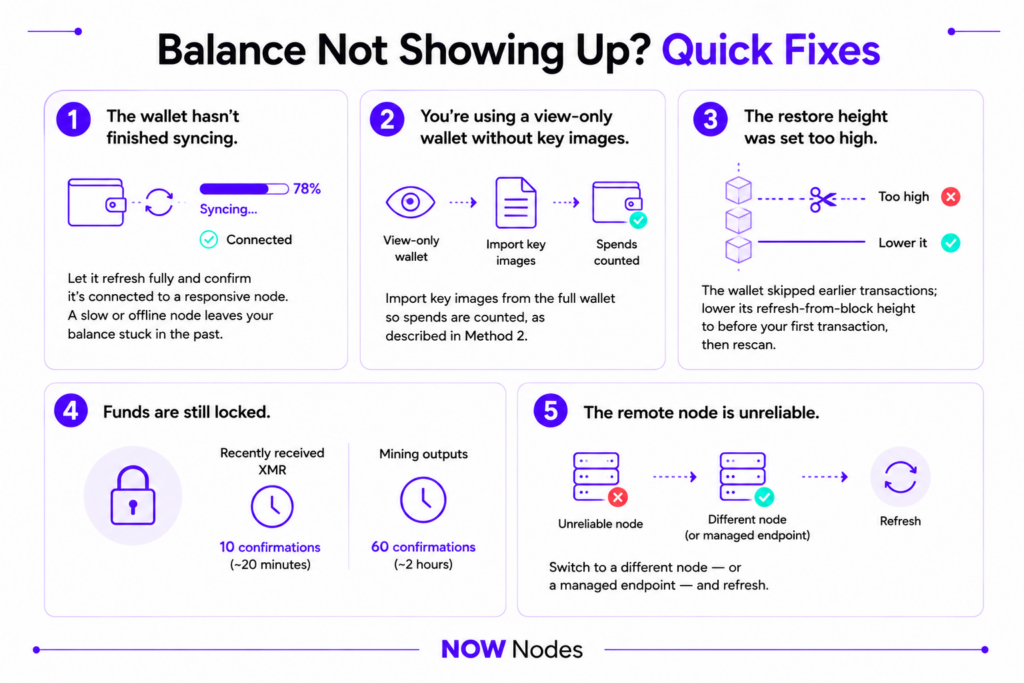
When a Monero balance looks wrong or missing, the cause is almost always one of a handful of things. Run through these before assuming anything is actually lost.
- The wallet hasn’t finished syncing. Let it refresh fully and confirm it’s connected to a responsive node. A slow or offline node leaves your balance stuck in the past.
- You’re using a view-only wallet without key images. Import key images from the full wallet so spends are counted, as described in Method 2.
- The restore height was set too high. The wallet skipped earlier transactions; lower its refresh-from-block height to before your first transaction, then rescan.
- Funds are still locked. Recently received XMR needs 10 confirmations (~20 minutes); mining outputs need 60.
- The remote node is unreliable. Switch to a different node — or a managed endpoint — and refresh.
One caution on the nuclear option: rescan_bc rescans the whole chain from your wallet’s start height and can erase locally stored data — labels, transaction notes — that don’t live on-chain, so reach for the gentler steps first. Most “missing” Monero isn’t missing at all; it’s a sync or key-image issue, and one of these steps brings the correct number back.
Conclusion
There’s no public lookup for a Monero balance, and that’s the feature, not a bug. To check an XMR balance you match the method to your situation: open your wallet for the everyday check, restore a view-only wallet for read-only visibility, use a block explorer to verify a specific transaction, or run wallet RPC against a node to automate it. Each leans on the same key system, exposed at a different level.
If you remember one thing, make it the view-key caveat: it reveals incoming funds cleanly but needs key images to account for what you’ve spent. Keep that in mind and the vast majority of balance confusion disappears. For teams building on Monero, connecting through a managed provider like NOWNodes removes the node-maintenance burden so you can focus on the product — with a free tier to start.
FAQ
Can I check a Monero balance with just the address?
No. Unlike Bitcoin or Ethereum, Monero doesn’t expose public address balances, so an address on its own reveals nothing. You need the wallet’s keys, or a view key that the owner has shared with you.
What’s the difference between a view key and a spend key?
The private spend key controls your funds and lets you send Monero — never share it. The private view key only reveals incoming transactions to your address; it can’t authorize spending, but sharing it still exposes your incoming activity, so it’s privacy-sensitive.
Why does my Monero balance look too high in a view-only wallet?
A view key can see money coming in but not reliably money going out, so a view-only wallet counts already-spent funds until you correct it. Export key images from your full wallet and import them into the view-only wallet to get an accurate figure.
What are locked and unlocked balances in Monero?
Locked balance is Monero you’ve received that hasn’t matured yet; unlocked balance is what you can actually spend. Standard received outputs unlock after 10 confirmations (~20 minutes), while mining outputs mature after 60.
Is it safe to share my private view key so someone can check my balance?
It can’t authorize spending, so no one can take your funds with it — but it isn’t “harmless.” Anyone holding it can see every incoming payment to that address, so share it only when necessary and only with a party you trust.
How do I check XMR balances for an app or exchange?
Use wallet RPC (monero-wallet-rpc) or a dedicated wallet-scanning API connected to a Monero node — the node supplies blockchain data, and the wallet layer holds the keys that compute the balance. NOWNodes provides that node access at xmr.nownodes.io, with a free plan of 100,000 requests per month.
Does the planned FCMP++ upgrade change how I check my balance?
Not for now — FCMP++ is still in development with no confirmed mainnet date, and today’s incoming view keys and wallet scanning are unchanged. If it activates, it would also enable optional outgoing view keys, which would eventually make view-only balances more accurate without importing key images.